Requirement
-
Unsorted: Before you can follow these steps, you must first add a harvest registration .
Click here for the steps. -
Sorted: Before you can follow these steps, you must add a sorting registration for your fruit .
Click here for the steps. -
Unsorted or sorted fruit from third parties: Before you can follow these steps, you must add a delivery of fruit .
Click here for the steps.
Step 1 – Open Sorting and packaging
Go to the home page of your environment and open the Sorting and packaging tile.
On the left-hand side of the screen, you will see several menu items, including:
Unsorted stock
Sorted stock
Step 2 – Open the stock overview
Both Unsorted stock and Sorted stock are further divided into:
Storage crates
Packages / pallet
This subdivision is based on the packaging type that was set when creating the packaging. When defining a packaging item, you specify which packaging type it belongs to.
Click one of the sections to open the corresponding stock overview.
Step 3 - Load and refresh stock data
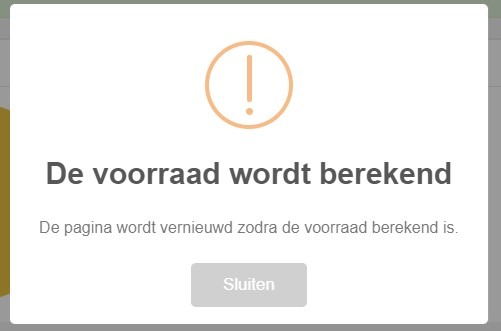
After opening a section, a pop-up appears: “The stock is being calculated”. You will then see an overview of your current stock.
Attention!
Stock is updated every 15 minutes by default. Have you recently made changes, such as deleting a code or creating a delivery note? Click the Recalculate stock button to refresh the stock immediately.