Step 1 - Open the Sorting and Packing tile
Open the Sorting and Packing tile on the dashboard. Within this tile, you will find all functionalities related to sorting, stock and deliveries.
Step 2 - Open the Delivery module
On the left-hand side of your screen, you will see the different modules. Click Delivery. The available sections will appear under this module.
Step 3 - Open Delivery Note
Within the Delivery module, click Delivery Note. You will now see an overview list of all delivery notes.
Step 4 - Open the details of the delivery note
Search for the desired delivery note in the list. On the right-hand side, next to the delivery note, you will find the blue Details button.
Click this button to open the screen with the details of the delivery note.
Click this button to open the screen with the details of the delivery note.
Step 5 - Open Documents
At the top of the detail overview, you will find the blue Documents button.
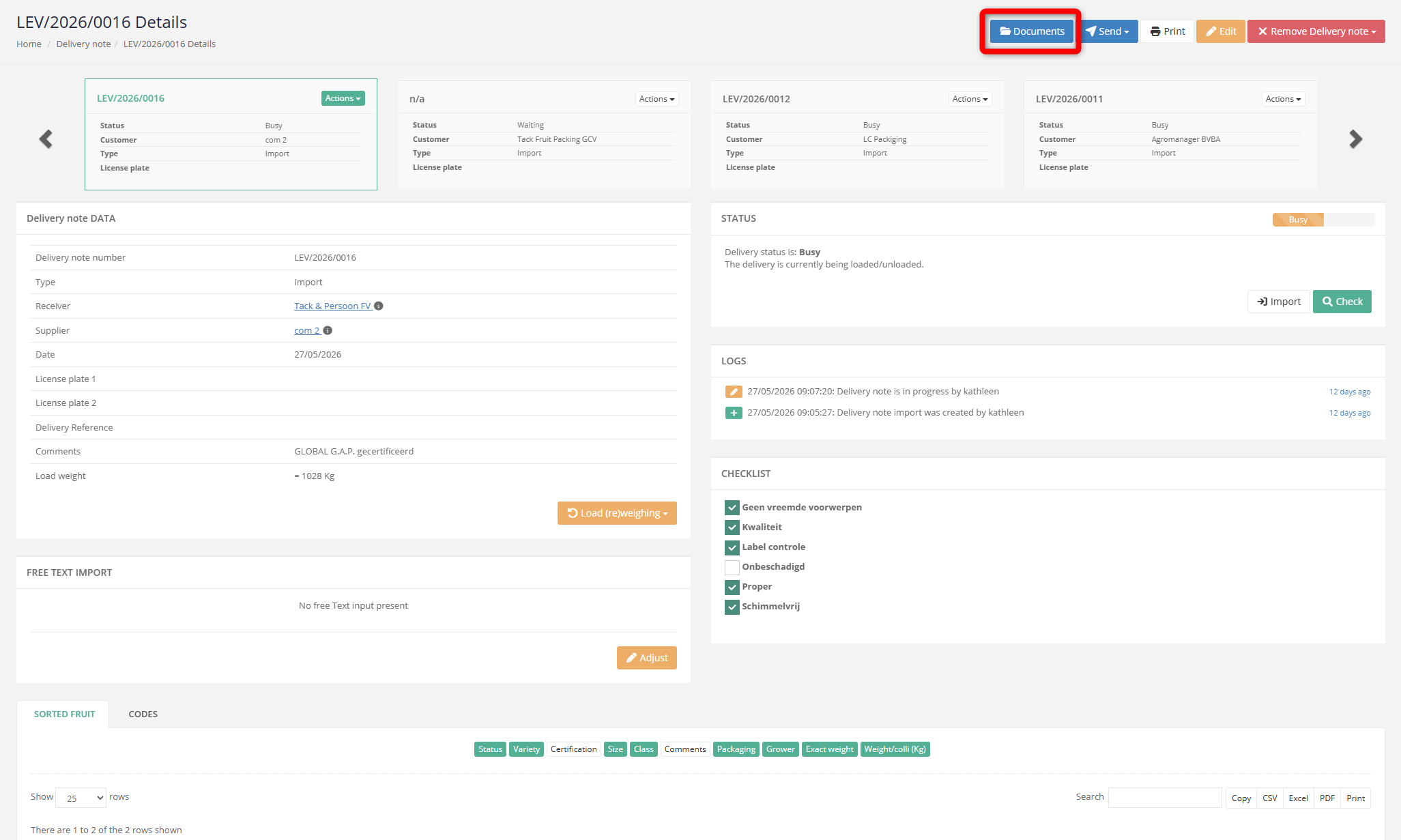
Click this button to open an overview of the documents that are already linked to this delivery note.
Click this button to open an overview of the documents that are already linked to this delivery note.
Step 6 - Download or delete a document
In the document overview, you will see all documents linked to the delivery note.
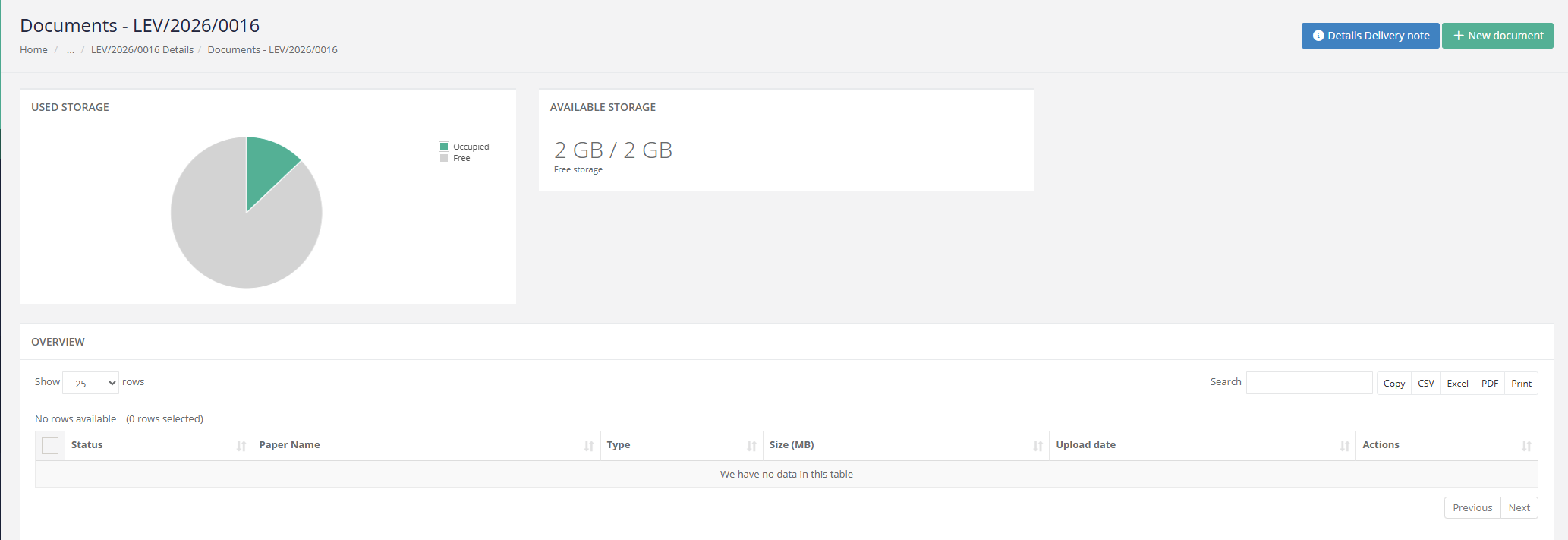
On the right-hand side, next to the document, you will find the available buttons under Actions.
Click the blue Download button to download the document.
Click the red Delete button to delete the document.
On the right-hand side, next to the document, you will find the available buttons under Actions.
Click the blue Download button to download the document.
Click the red Delete button to delete the document.