Step 1 - Go to settings in the app
Select the settings icon
Step 2 - Options
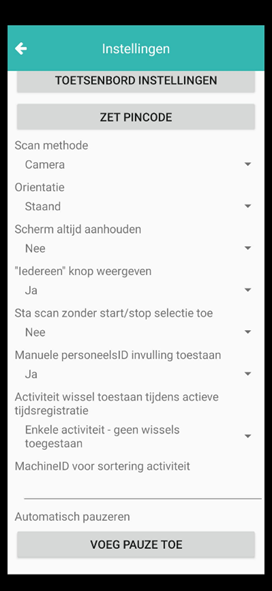
- Scan method: standard camera for Android devices. Zebra for TC26, 27 and Unitech.
- Orientation: Landscape or portrait; use portrait for Android devices.
- Always keep screen on: Not recommended for Android, as the battery level will decrease significantly.
- Show "Everyone" button: This allows you to put everyone on break or stop everyone at the same time.
- Allow scan without Start/Stop selection: Agromanager will check whether the personnel member is already clocked in or not. Based on what it finds, the personnel member will be started or stopped.
- Allow manual personnel ID entry: This allows the personnel member to start based on their ID number instead of scanning the QR code.
- Allow activity change during active time registration:
- Single activity – no changes allowed:
It is not possible to change activity while the personnel hours are running. You must first stop the current activity before you can start a new one. - Single activity – changes allowed:
You can change activity while the personnel hours continue running. - Multiple activities:
You can perform multiple activities at the same time on one crop.
Please note: Do not enable this option if you work with registration on the ‘Sorting’ activity.
- Single activity – no changes allowed:
- Machine ID for sorting activity:
- Automatic crop detection: Choose whether or not you want crops to be detected while carrying out an activity.
- Automatic break:
Here you can add automatic breaks. Please note: if the data signal is lost when going on break or ending a break, nothing will be registered.
Please note: when you use working hours as a break, you may not set an automatic break on the timers, otherwise the break will be counted twice.